
Home > Configuration Portal > Requisition Configuration > Manage Jobs > Add a New Job
Add a New Job
Follow the steps below to add a job:
-
Navigate to Requisition > Job hierarchy.
-
Click the Add button.
-
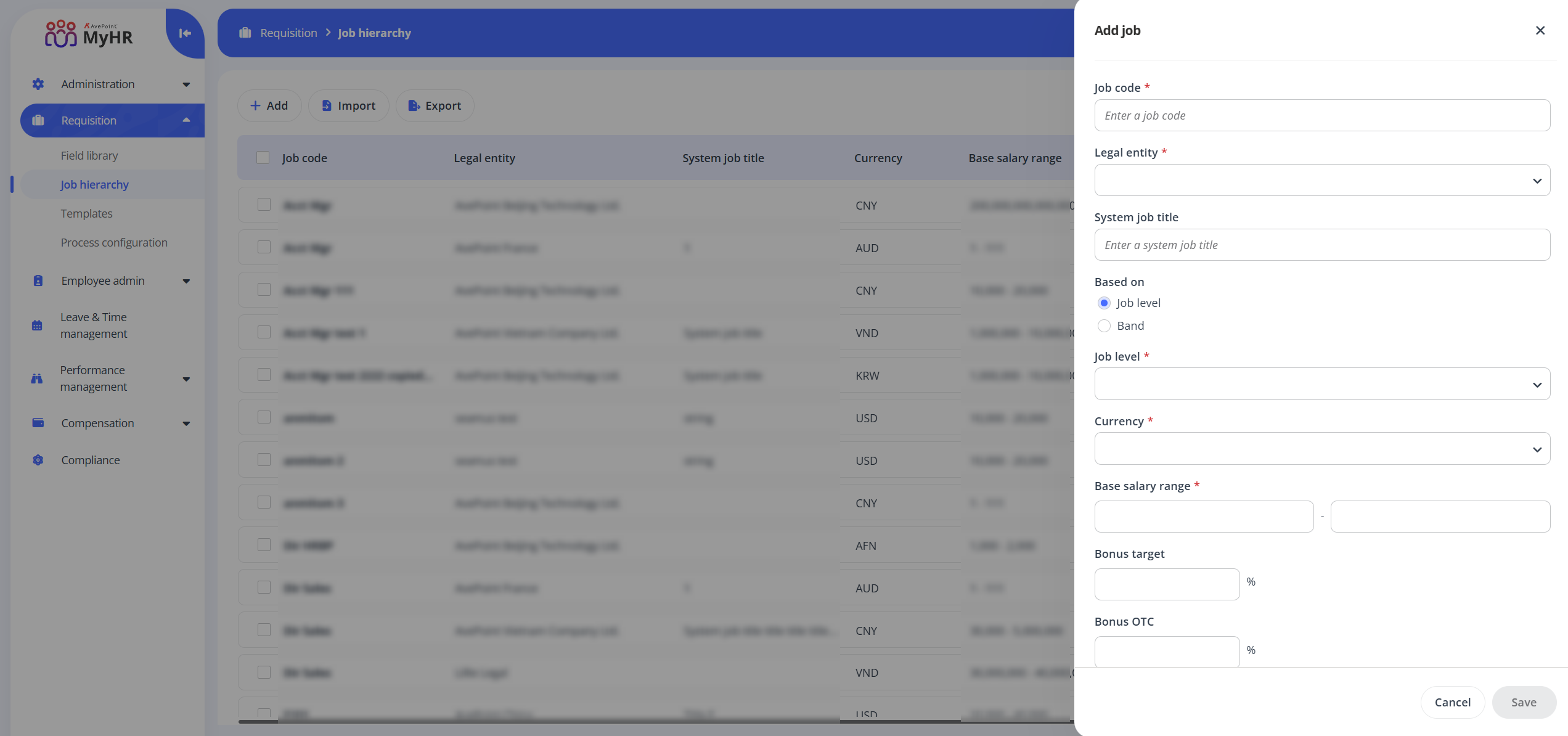
In the Add job panel, complete the following settings:
-
Job code - Enter a job code for your job.
-
Legal entity - Select a legal entity from the drop-down list.
-
System job title - Enter a system job title for your job.
-
Based on - Choose whether the job salary range is based on job level or band.
-
Job level/Band - Select a job level or band from the drop-down list. You can select multiple job levels.
-
Currency - Select a currency from the drop-down list as needed.
-
Base salary range - Configure the range for base salary.
-
Bonus target - Enter a number to configure the bonus target.
-
Bonus OTC - Enter a number to configure the bonus OTC.
-
Target equity (USD) - Enter the target equity.
-
Notes - Enter notes as needed.
-
-
Click Save to save this job.