
Home > Configuration Portal > Requisition Configuration > Manage Requisition Request Templates > Create a New Template
Create a New Template
Follow the steps below to create a new template:
-
Navigate to Requisition > Templates.
-
Click Create on the command bar.
-
In the create template page, complete the required settings:
-
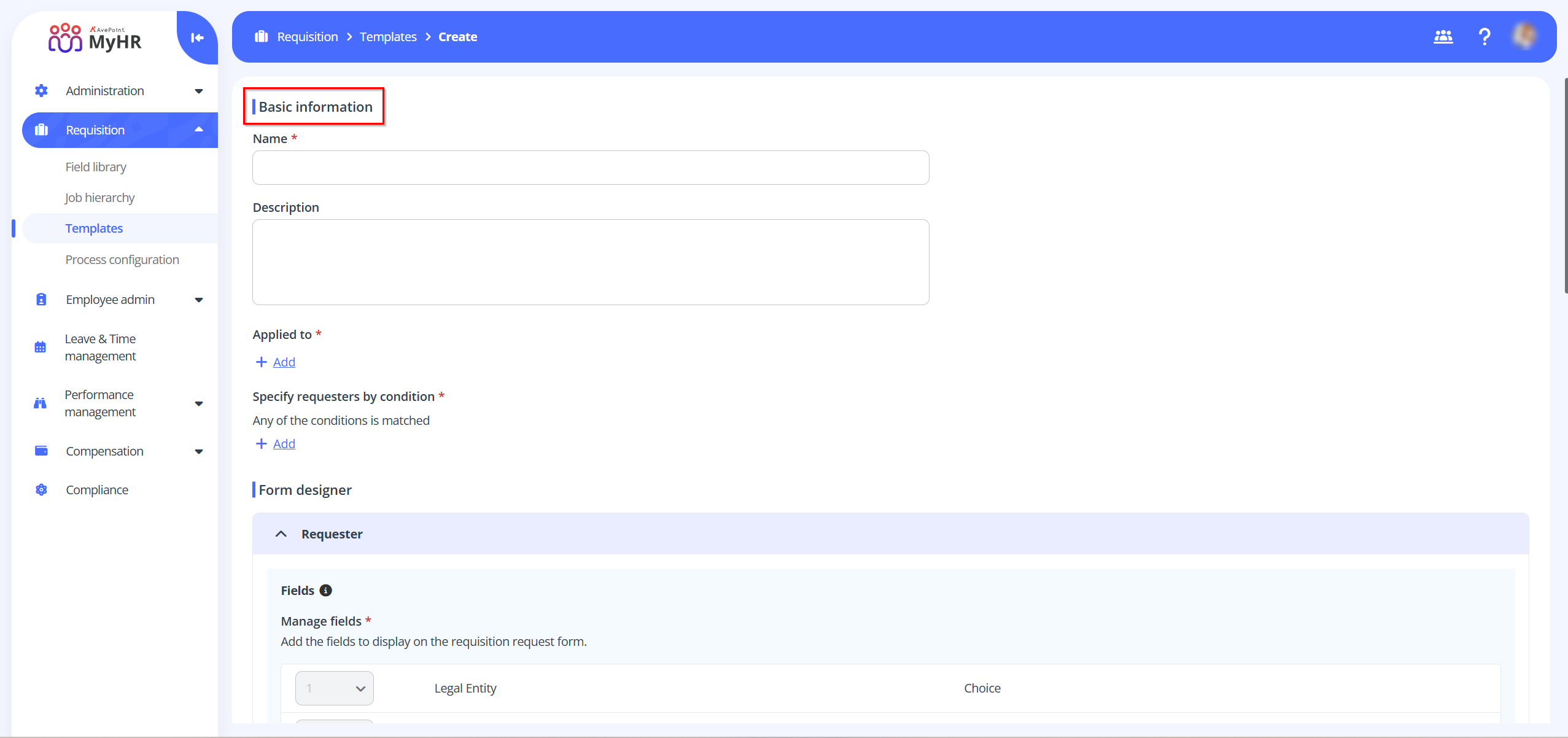
Basic information – Complete the following required information:
-
Name – Enter a name for the template you are creating.
-
Description – Enter description for your template as needed.
-
Applied to – Click Add link to define the applied scope. In the Apply to panel, select the specific organizations, legal entities, or offices as needed, and click Apply.
-
Specify requesters by condition – Specify which employees can submit requisition requests by configuring rule conditions. Click Add to add multiple rules for filtering employees.
-
-
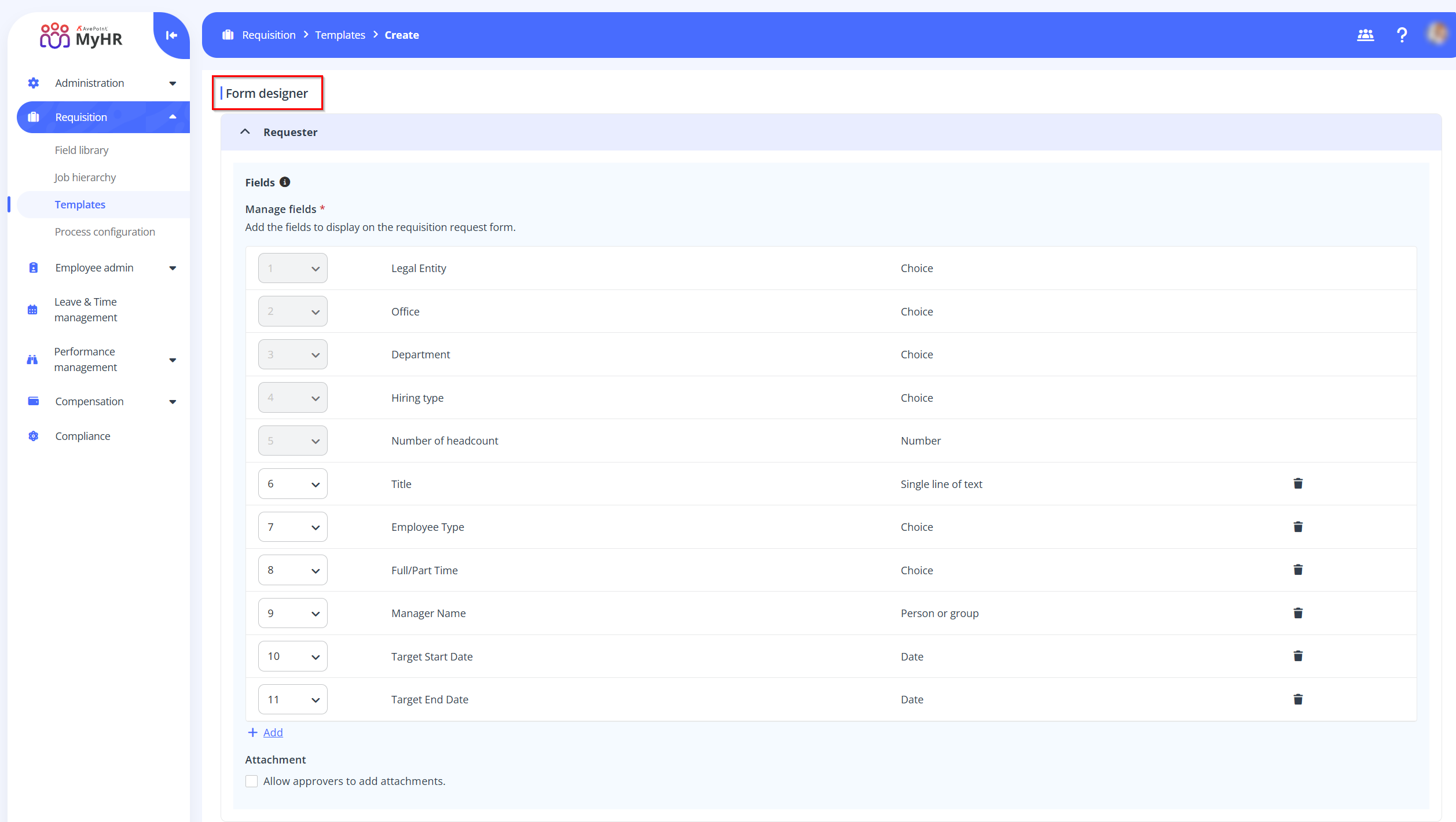
Form designer – Configure the fields which will be included in the requisition request form.
-
Fields – Click Add to select fields as needed and click Apply.
-
Attachment – Select the Allow approvers to add attachments option to enable approvers to add attachments when reviewing the requisition request.
-
-
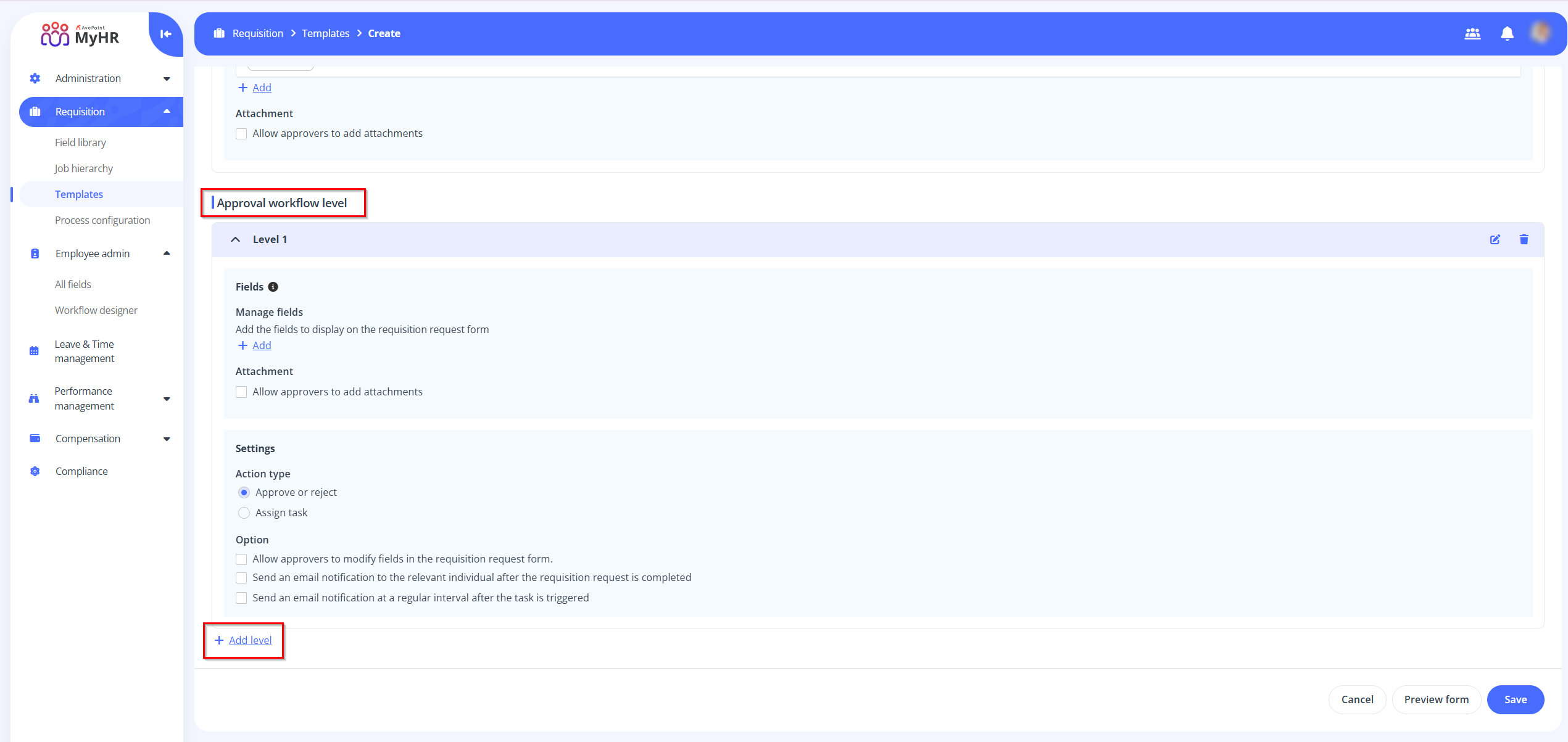
Approval workflow level – Configure the approval workflow levels for requisition requests.
-
Fields – Configure the fields which will be included in the requisition request form. Click Add to select fields as needed and click Apply.Select the Allow approvers to add attachments option to enable approvers to add attachments when reviewing the requisition request.
-
Settings – Complete the following settings:
-
Action type – Select whether the approver at this level can approve/reject requisition requests or assign the request task to others.
-
Option – Configure whether to allow approvers to modify fields in the requisition request, whether to send an email notification to the relevant individual after the requisition request is completed, and whether to send an email notification at a regular interval after the task is triggered.
-
Click Edit to update the level name or Remove to delete the workflow level. Click Add level to add additional levels.
-
-
-
Click Save to save the template. You can also click Preview form to preview the template before saving.