Home > How to Manage Leave Balances for Employees?
How to Manage Leave Balances for Employees?
As an HR professional, you have the flexibility to manage employee leave balances in line with your organization's policies. Manual adjustments can be made to different types of leave to account for various workplace scenarios or policy updates. All leave types can be manually adjusted as needed in MyHR.
Follow the steps below to manage leave balances for employees:
-
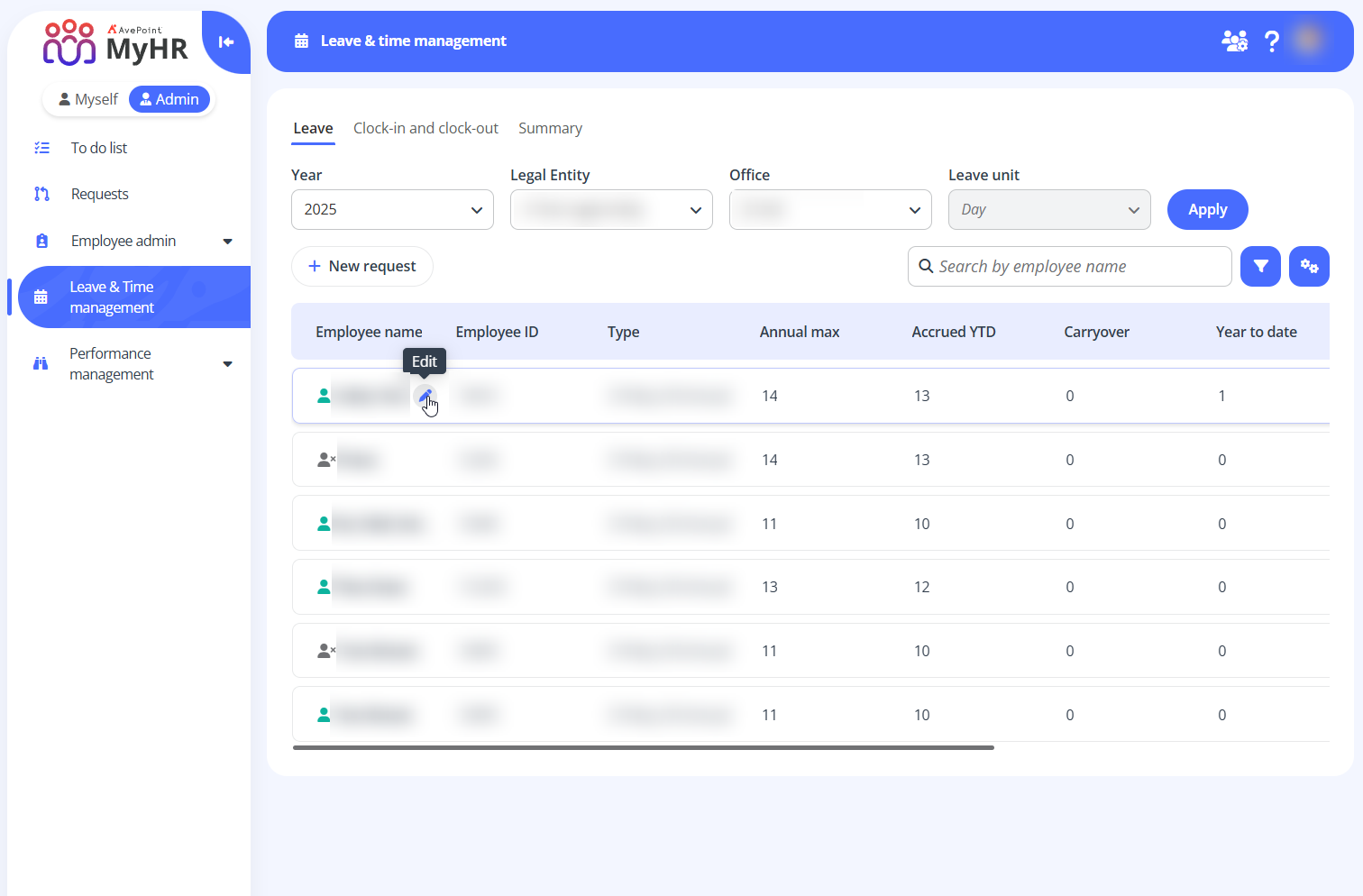
Navigate to Leave & Time management > Leave.
-
You can use the Year, Legal entity, and Office filters to find employees. Click Apply to display their leave data.
-
Find the employee whose leave details need updating.
-
Hover over the employee and click the Edit button.
-
In the Edit window, you can review the employee name and leave type. Complete the following settings:
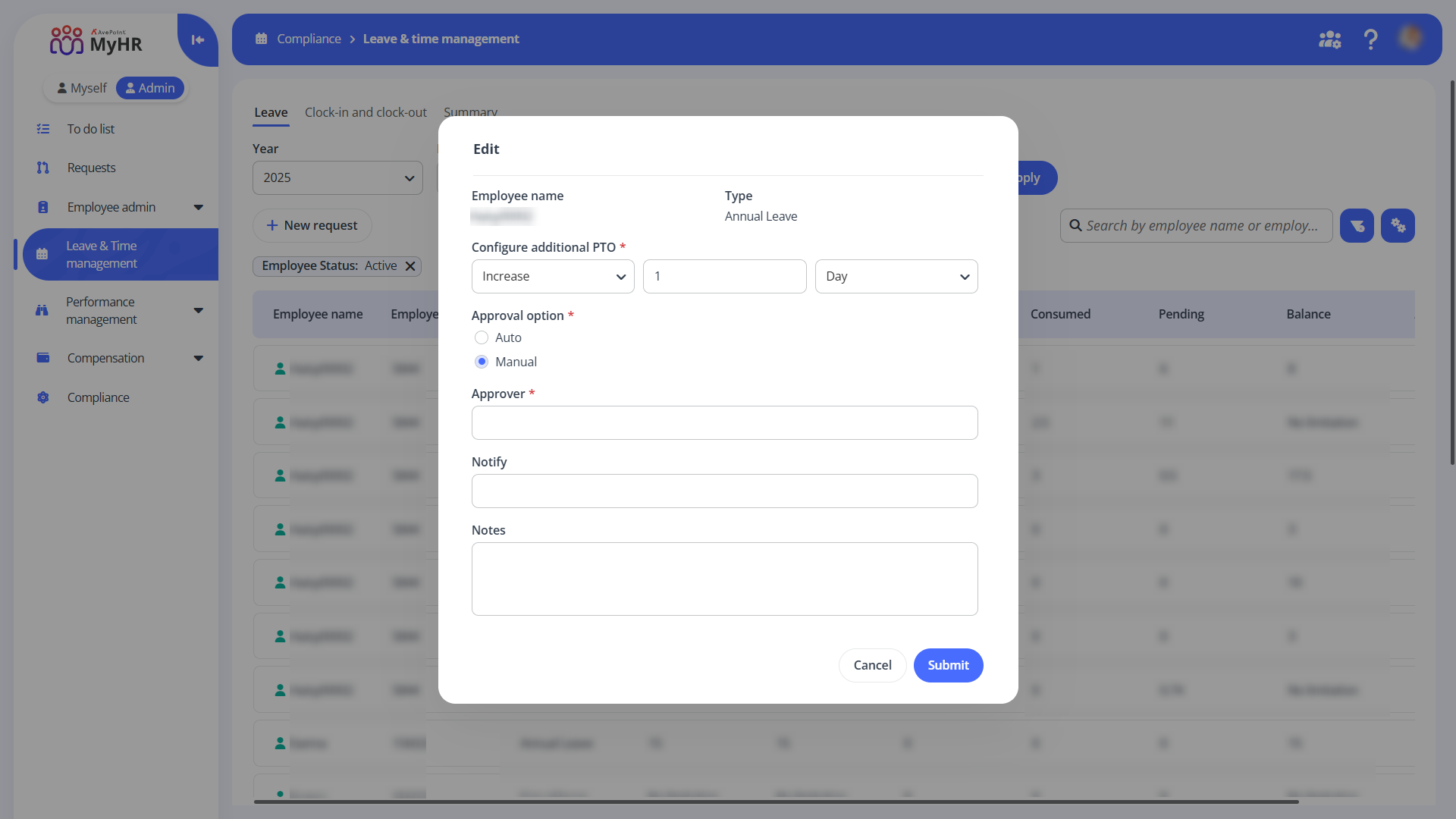
- Configure additional PTO – Increase or decrease the leave balance in days or hours.
- Approval option – Choose whether the additional PTO request should be automatically approved or require manual approval.
- Approver – Enter the approver’s name or email address if you select Manual as the approval option. The default approver is your manager. If changed, your manager will be automatically included in the Cc list of the email notification.
- Notify – Enter the name or email address of users you wish to notify as optional recipients. These users will be included in the Cc list of the email notification.
- Notes – Enter the notes if required. This field is optional.
-
Click Submit.
-
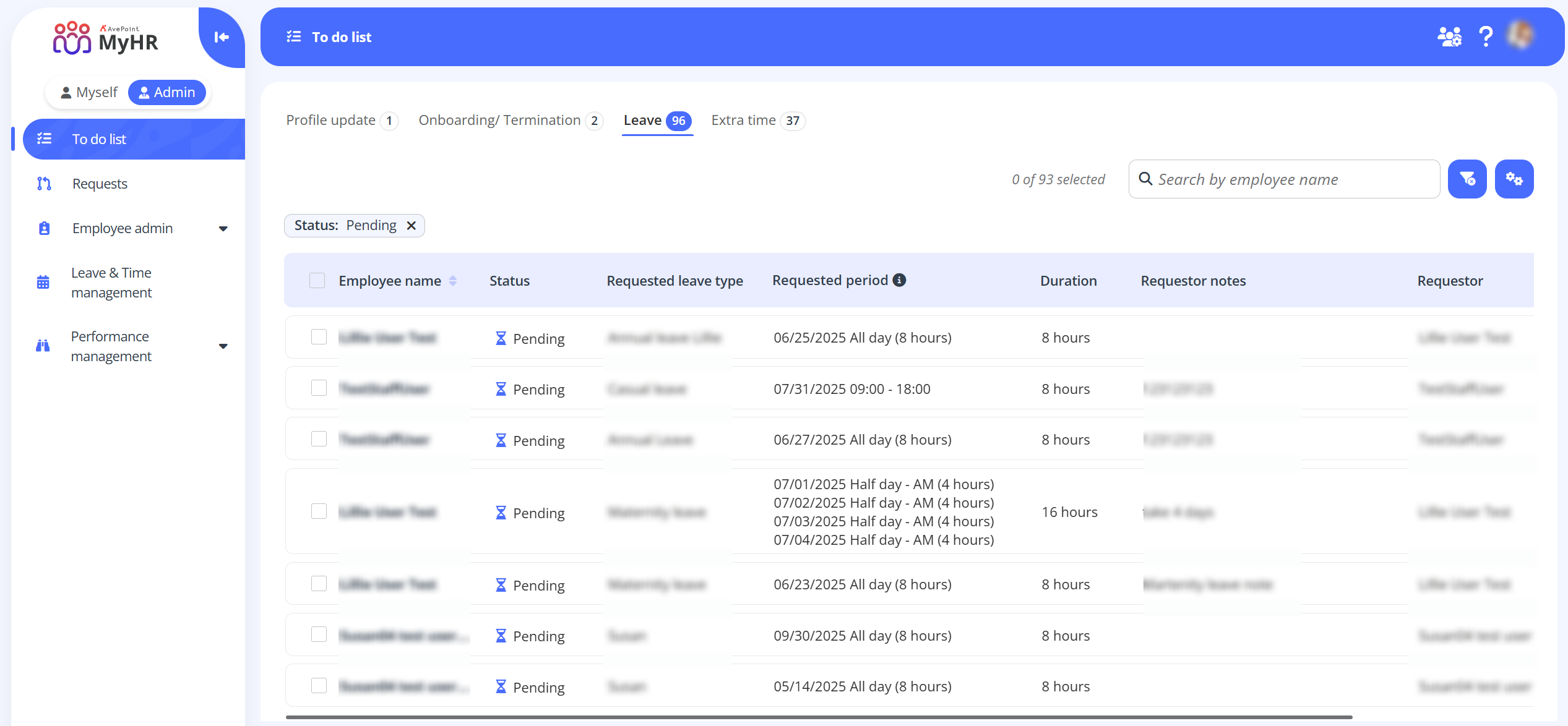
After submission, approvers can find the pending request on the To do list > Leave tab. You can check your request on the Requests page, and the leave balances will be updated once approved.
Check Leave Information
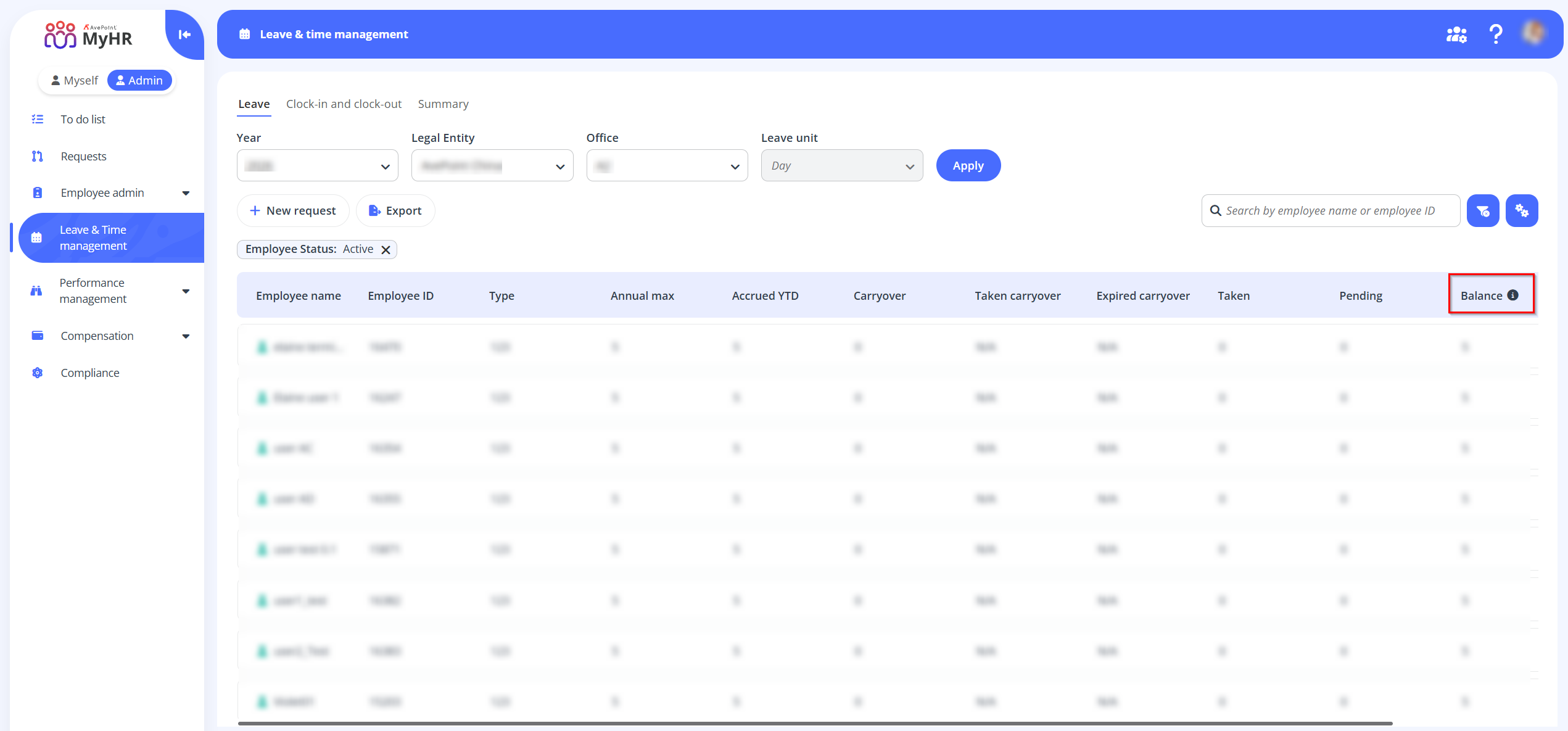
You can check employees' leave balances in Leave & Time management > Leave tab > Balance column.
The balance is calculated based on the carryover settings:
-
Standard calculation (no expiration or pre-expiration): Accrued YTD + Available carryover + Balance adjustment - (Taken + Approved + Pending days)
-
After the carryover expiration date (if the Display expired/taken carryover setting is enabled in the Configuration Portal): Accrued YTD + Taken carryover + Balance adjustment - (Taken + Approved + Pending days)
Export Leave Report
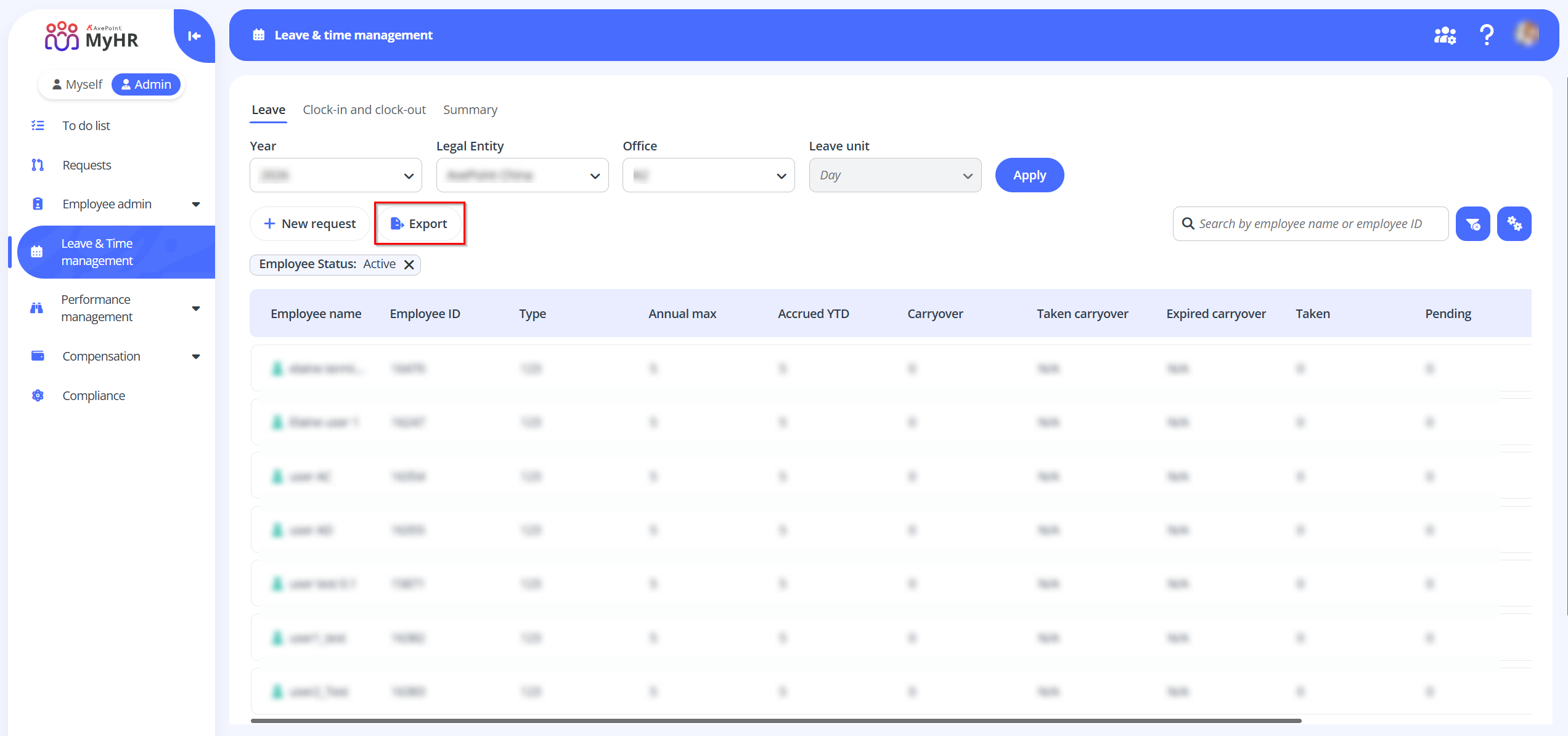
To export the leave report, navigate to Leave & Time management > Leave and click Export.
Before exporting, you can apply filters by clicking the Filter button. This ensures only the employee data matching your selected criteria will be included in the exported report.