How to demo tyGraph
tyGraph products can be installed through our Power BI template apps. These apps come pre-populated with demo data and are a great way to see what tyGraph can offer. Typically, a single Administrator or IT member will install these apps. After which, you can invite your colleagues to the workspace or publish an app to your audience.
CONTENTS
Please note that all the users of the tyGraph reports require Power BI Pro licenses. Refer to this article for a detailed explanation of your options: What version of Power BI is required for tyGraph? : Support
Instructions
Go to the Power BI Service
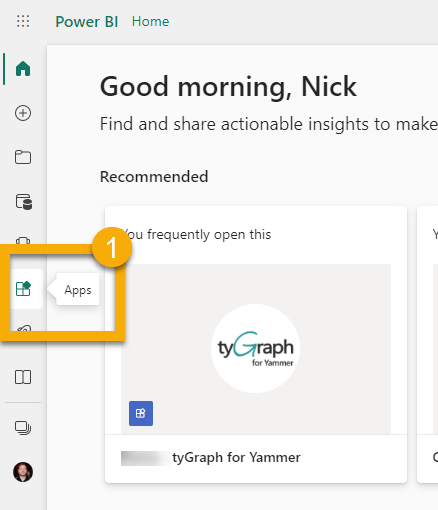
Click Apps in the left navigation menu
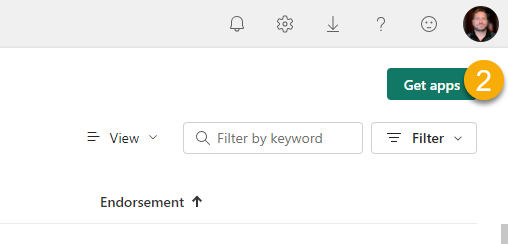
Click Get apps
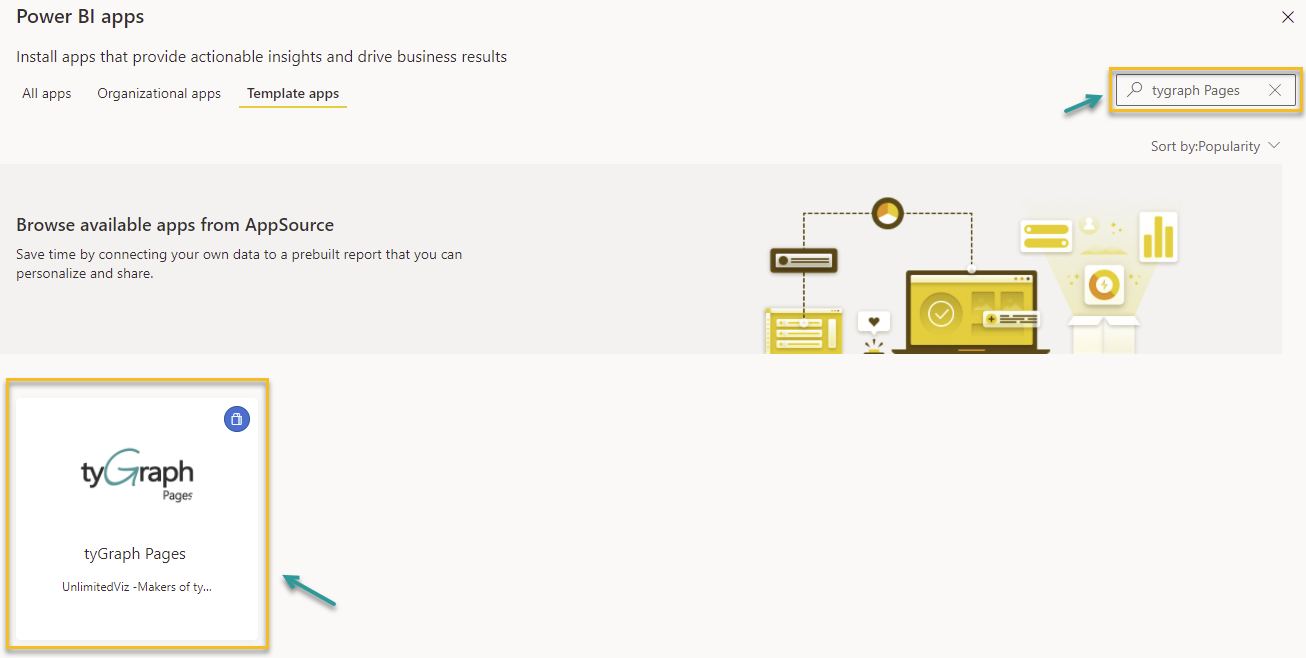
Search for the desired tyGraph product in the Search field
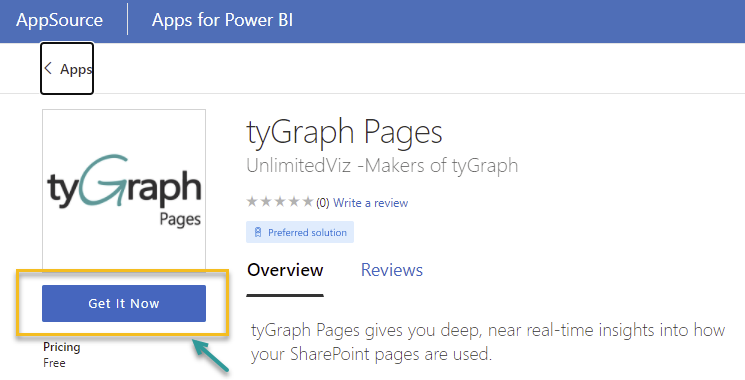
Click Get It Now
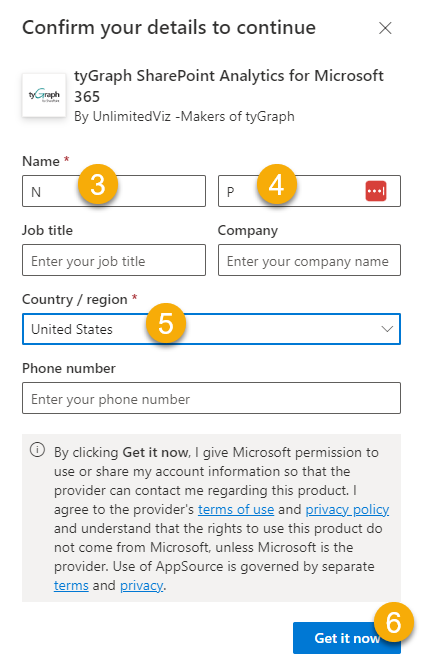
If the form does not go away, enter the required (*) information in the form and click Get it now
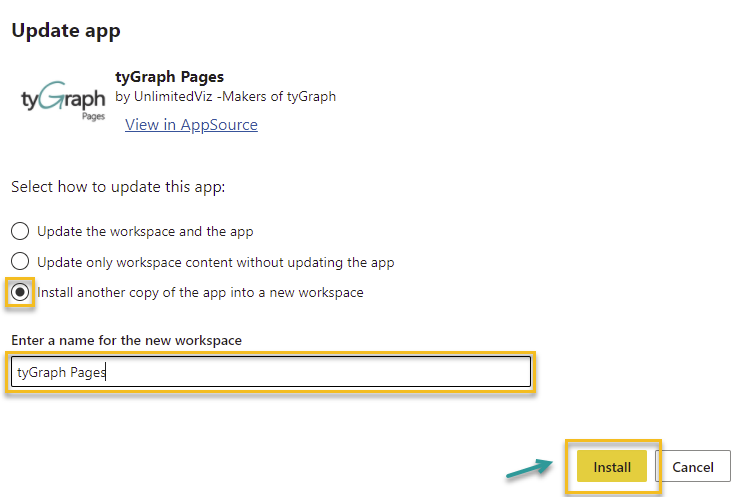
If you've installed tyGraph before, a message may pop up. Select Install in New Workspace. Enter Workspace name eg. tyGraph Pages. Click Install
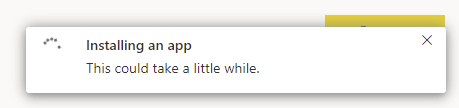
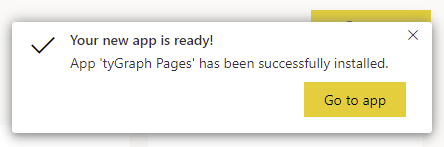
A box will appear in the upper-right saying Installing an app. When it is ready, click the Go to app button.
Create a browser bookmark/favorites folder called Demos.
Add a link to this tyGraph demo product to your Demos folder.
Learning more about tyGraph Products
Here are guides to help learn more about each tyGraph product.
Product Guides
Troubleshooting
If you experience issues, you can view the dataset settings and even refine your schedule see guide on How to Refresh a Power BI Dataset